
Groups, permissions & locks
Privilege levels say what a user can do on every table. Groups say what someone can do on some tables, or on some rows of a table — and locks freeze records so that nobody but an admin can change them any more.
Typical uses:
- an external reviewer who may read, and perhaps correct, only the records of one site or one excavation season;
- a public API key that reads only the records marked as published;
- freezing the records that have been checked and published, so that a stray edit cannot alter them.
All of it is managed in Users, in the Groups and Locks tabs (admins only).
How the pieces fit
| Piece | What it does |
|---|---|
| Level (see Users & privileges) | The baseline on every table |
| Group | A named set of rules; a user can be in several, an API key in one |
| Rule | In a group: this action (create, read, update, delete) on this table, optionally only on the rows that match a filter |
| Lock | Rows of a table (selected by a filter) that nobody but admins can update or delete |
The rules are simple:
- A user can do what their level allows or what any of their groups allows. Groups only add; there is no "deny" inside a group.
- A lock then takes update and delete away from everyone below admin, on the rows it freezes — even if the level or a group would allow it.
- Admins and super admins are not affected by locks: they curate the data, frozen records included.
- With no groups and no locks, nothing changes: the level decides, as before.
Level Enter and groups
A user at level Enter (39) has no data access of their own. Put them in a group and they get exactly what the group's rules say — nothing else. They see only the tables they may read in the table list.
Creating a group
- Users → Groups → New group. Give it a name and, if you like, a description.
- Add members: the users who belong to it. (You can also set a user's groups in the user form.)
- Fill in the permissions grid and click Save permissions.
The left list also shows the six built-in levels, read only, with what each one allows — the table you saw above — so there is a single place to look.
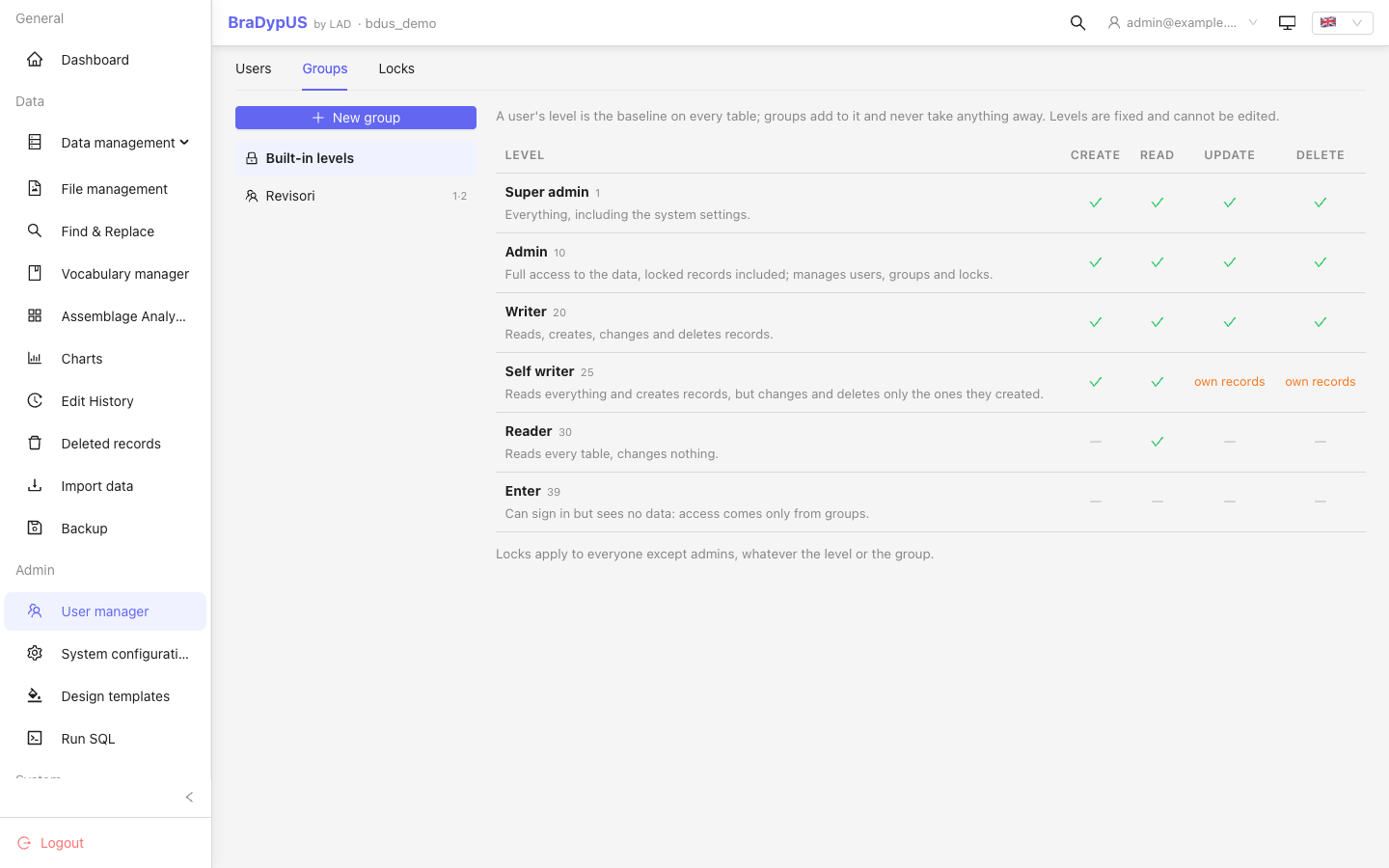
The permissions grid
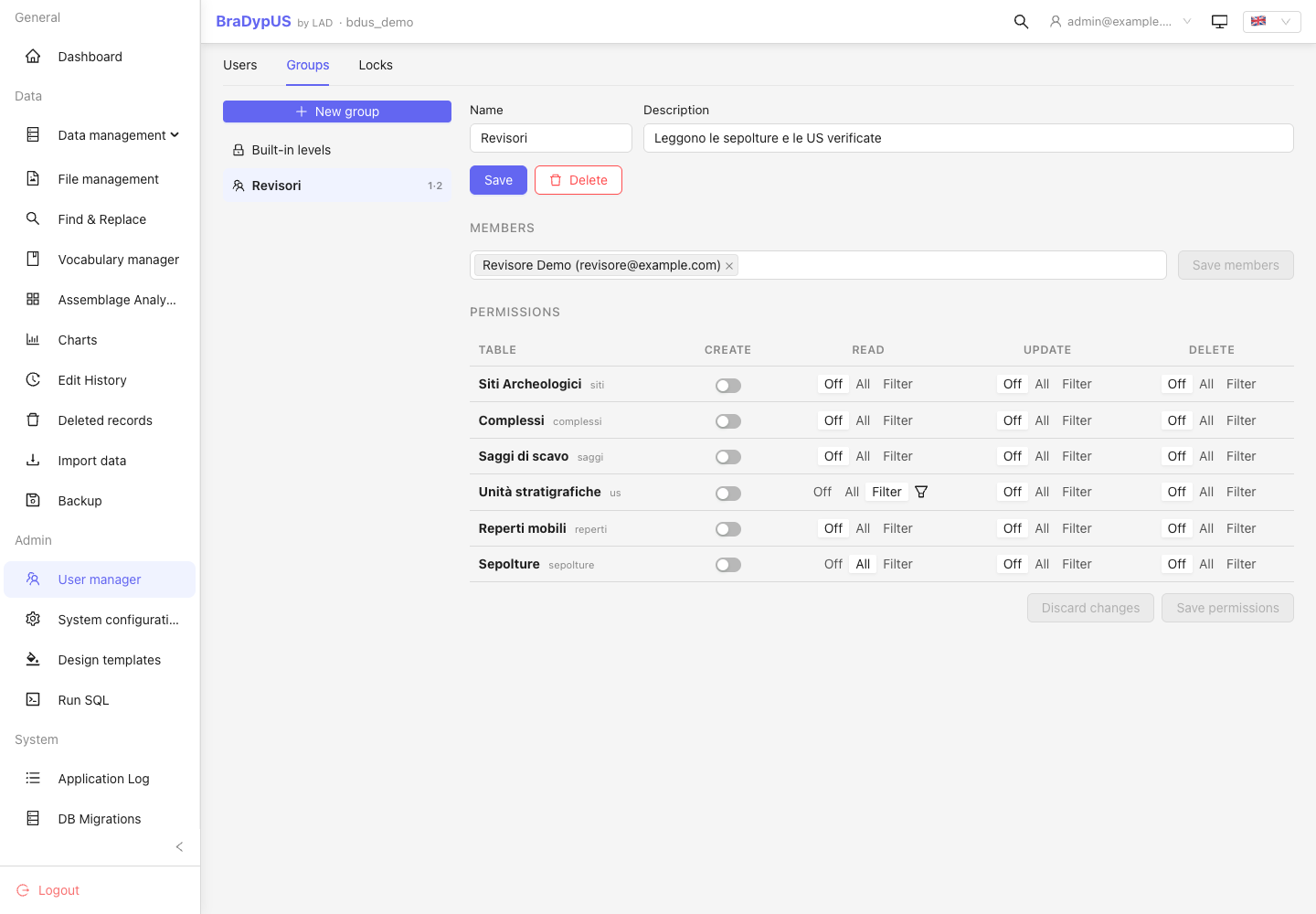
One row per data table, four columns:
| Column | Choices |
|---|---|
| Create | on / off |
| Read | Off · All · Filter |
| Update | Off · All · Filter |
| Delete | Off · All · Filter |
All means every row of the table. Filter means only the rows that match a filter: click the funnel to edit it.
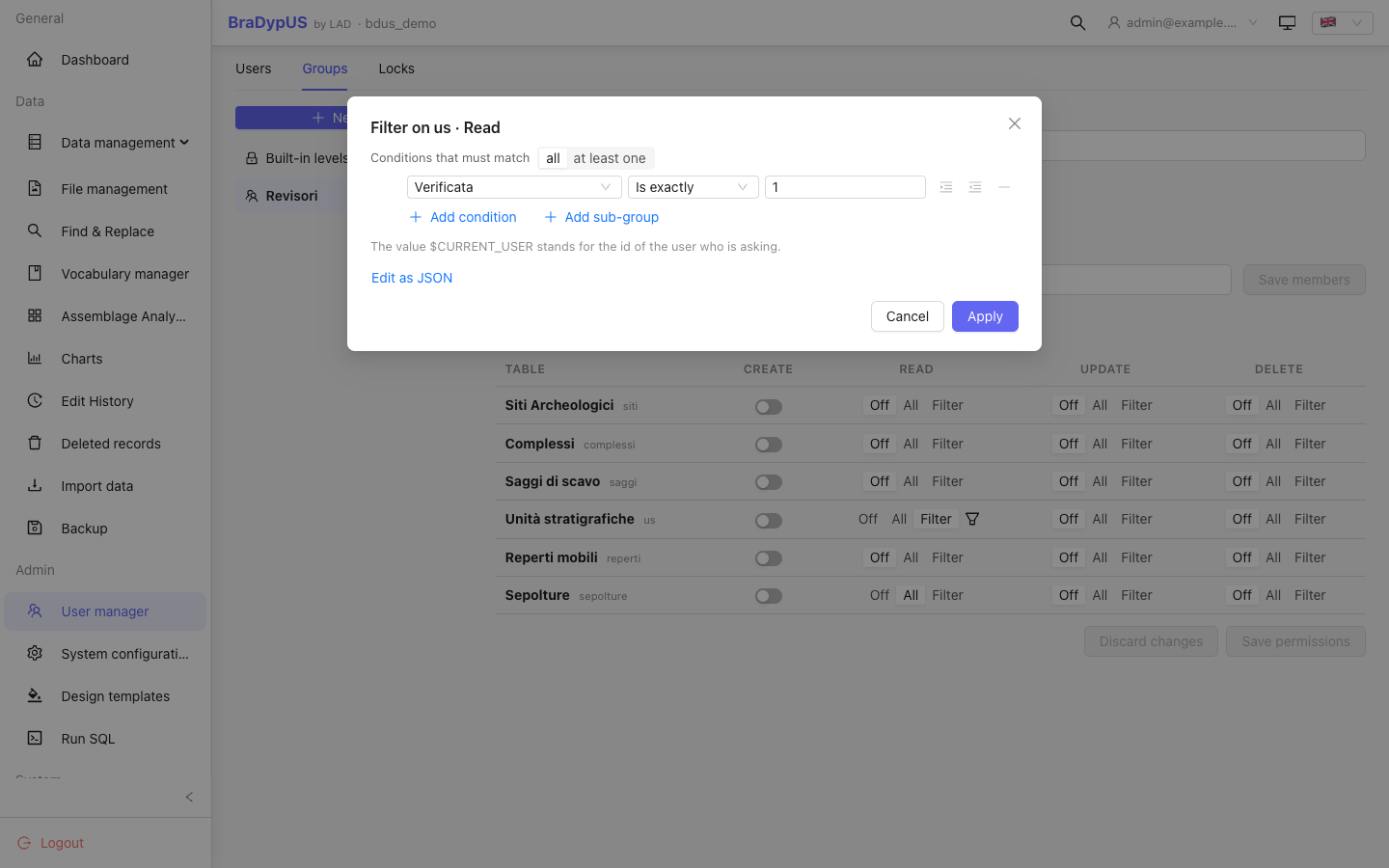
The filter editor is the same query builder used to search the data (conditions, all / at least one, sub-groups). The value $CURRENT_USER stands for the id of the user who is asking, so a rule can say "the records I created":
creator is exactly $CURRENT_USERBesides $CURRENT_USER a filter can use $CURRENT_GROUPS (the ids of the user's groups) and $GROUP.name (the value of a group attribute).
Filters can also be edited as JSON — the escape hatch for anything the builder cannot show. A filter is checked when you save: an unknown field or operator is refused, and nothing is saved until the grid is valid.
Create has no filter
A new record does not exist yet, so there is no row to test. Create is a plain switch. To control the values a new record may carry, use pinned values.
Attributes and pinned values
When many groups need the same rule with a different value (one team per site, one office per region), do not make one rule per group: give each group an attribute and write the rule once.
- In the group's details, Attributes: add
site=Ostia(several values:Ostia, Cuma). - In the rules, use it in the filter:
siteis exactly$GROUP.site. - To stop the client choosing the value on its own, click the shield next to Create (and Update) and pin it: field
site, value$GROUP.site.
From then on a member of the group sees and changes only the records of their site, and a record they create or save can only carry their site:
| What the client sends | Create | Update |
|---|---|---|
a value of the group (Ostia) | accepted | accepted |
another value (Pompei) | refused: This value is not allowed for your group | refused |
| nothing / empty | filled in with Ostia | field left as it is |
Details worth knowing:
- A user in several groups can use the values of any of their groups. If a new record leaves the field empty and more than one value is possible, it is refused: the server never guesses.
- Pinned values also apply to duplicating a record (the copy gets the group's value) and to imports (an import with a forbidden value is refused as a whole).
- They restrict only where the group rule is what grants the action: administrators, and a level that already allows the action on every table, are not restricted. A rule with no pinned values restricts nothing.
- If a variable is unknown, or no group of the user has that attribute, the rule grants nothing (a typo never opens access).
- Values can be literals too (
status=draft), or a list.
Default groups
Three groups come with every application and can be used instead of a level for the data side of permissions:
| Group | What its members can do, on every table (new ones too) |
|---|---|
| Reader | read |
| Writer | read, create, update, delete |
| Self writer | read and create; update and delete only the records they created |
They are system groups (shown with a padlock): they cannot be renamed, changed or deleted, not even by a super admin; you can only choose their members. Put a user at level Enter in one of them and they get what the level of the same name gives on the data, and the same in every operation tested (records and everything attached to them: plugin rows, relations, links, files, geometries, imports). The advantage is that the group is a normal group: you can add attributes and pinned values to it, or combine it with other groups. Nobody is in these groups until you add them, and levels keep working as before. Admin and super admin remain levels: they also decide who can configure the application, manage users and backups, and are not affected by locks.
The levels they replace are deprecated
Writer, Self writer and Reader (levels 20, 25, 30) are kept working and unchanged, but they are deprecated: new users should get level Enter plus the group. The levels will be removed only when all of this holds: the groups have been compared with the levels on real data without differences (bin/groups-equivalence.php), there is a tool to move users with a way back, and at least one release has shipped with both. Admin and super admin stay levels for now.
Example: a reviewer for one site
Group Reviewers site 5, with the user at level Enter:
| Table | Create | Read | Update | Delete |
|---|---|---|---|---|
| Stratigraphic units | off | Filter: site is 5 | Filter: site is 5 | off |
| Sites, Finds | off | All | off | off |
The reviewer sees the units of site 5, can correct them, and can read (but not change) the other tables. Nothing else is visible.
Example: a public, read-only key
Group Public, with an API key at level Enter:
| Table | Read |
|---|---|
| Stratigraphic units | Filter: status is published |
Locks
Users → Locks → New lock. Choose a table and a filter; the rows it matches are frozen:
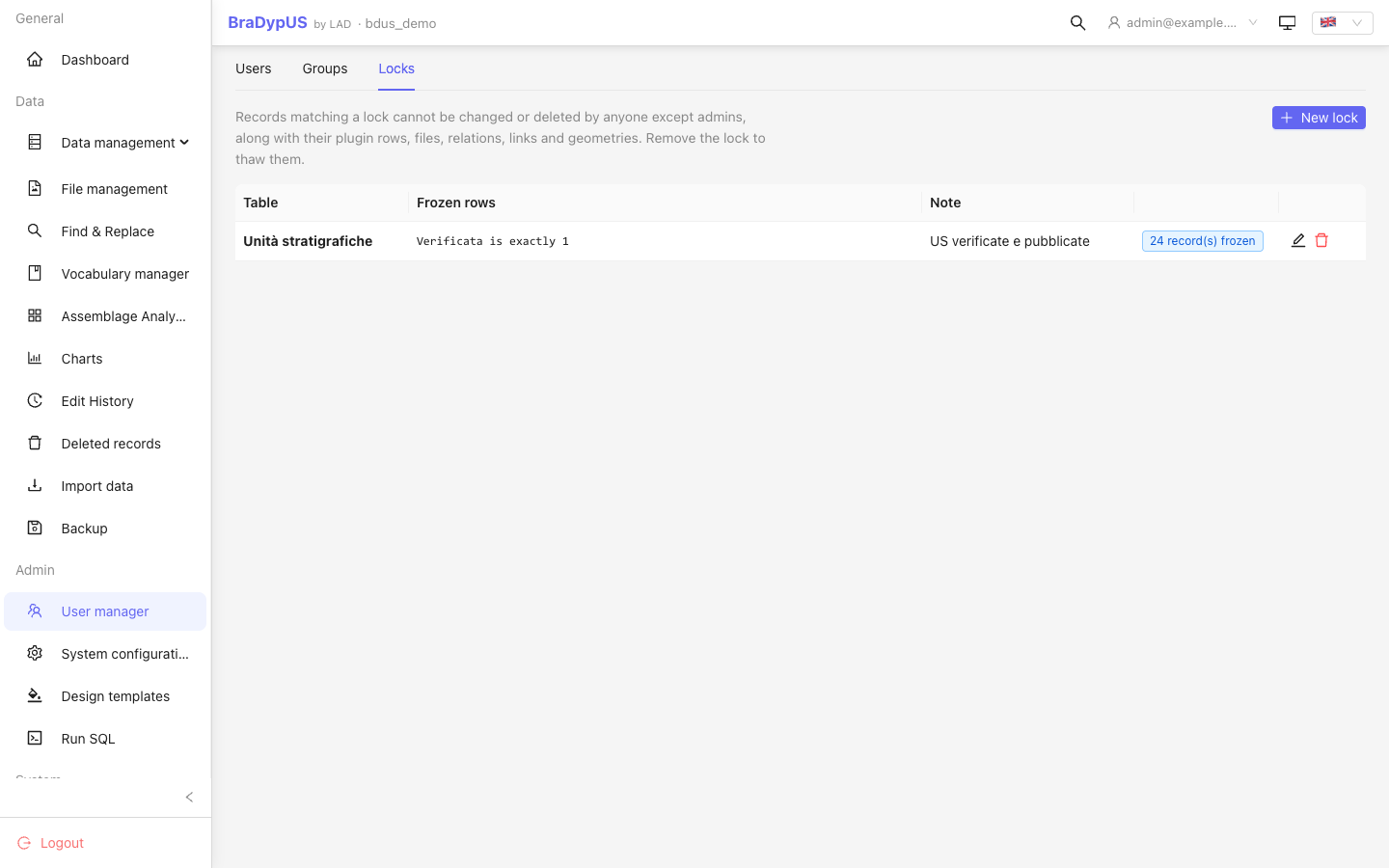
- they cannot be changed or deleted by anyone except admins;
- the freeze extends to what belongs to the record — its plugin rows, attached files, stratigraphic relations, manual links, geometries and Zotero links;
- it also holds for imports: an import that touches a frozen record is refused as a whole, and writes nothing.
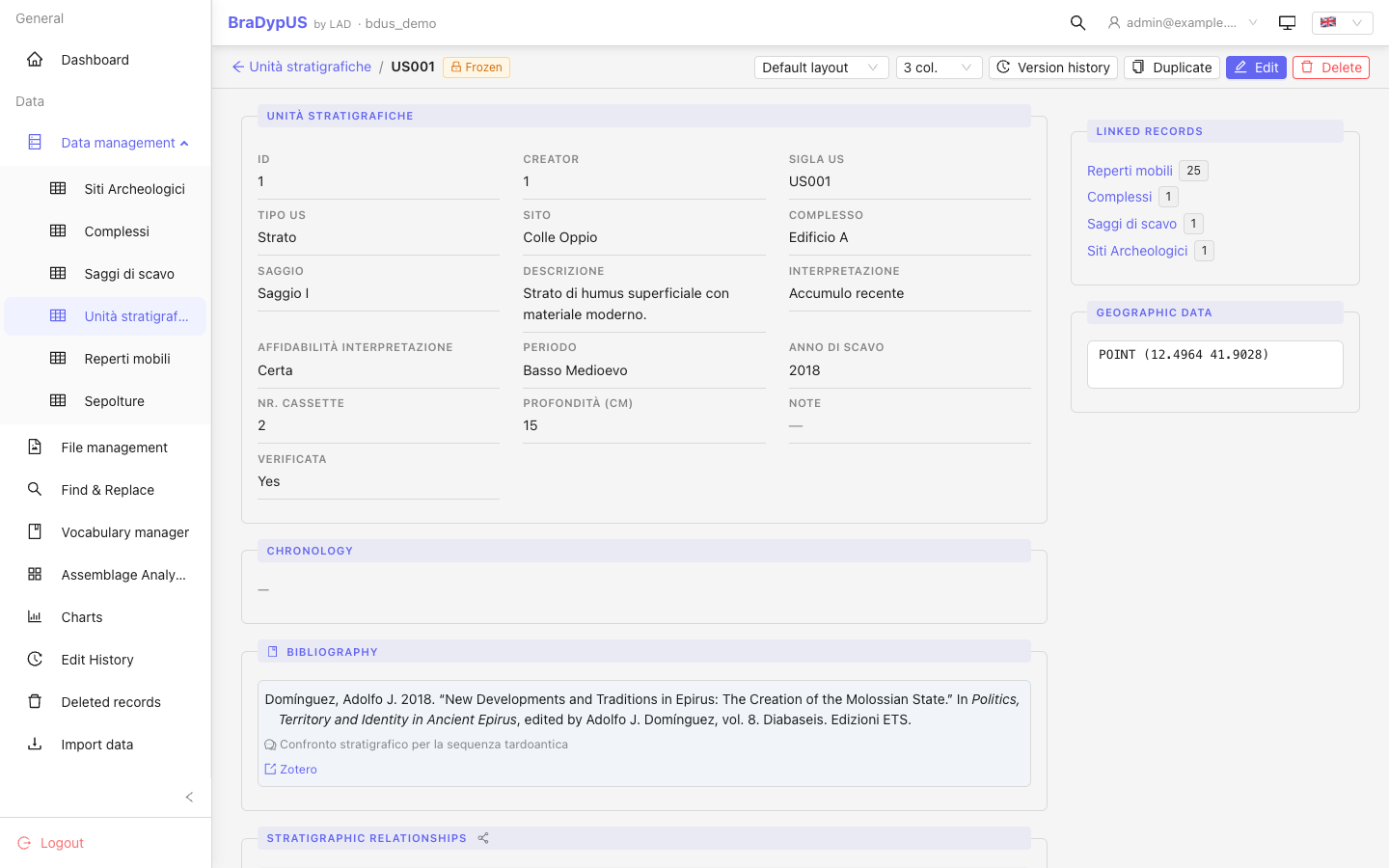
The list shows how many records each lock freezes right now. A frozen record shows a Frozen badge in its page, and its Edit and Delete buttons are hidden for everyone but admins. Remove the lock to thaw the records.
A lock needs a filter: an empty one would silently freeze the whole table.
Publishing
A convenient pattern is a field such as status or published, and a lock on status is published: setting the field marks the record as done, the lock keeps it that way. An admin can still correct a published record, or remove the lock.
Workflow states
A status field plus a lock gives two states: open and frozen. For more (draft → submitted → reviewed → validated, each role acting on its own step) rules and locks are not enough on their own, because they select which rows can be read or changed, never which values can be written. The database can close the gap: a view per role (own columns, own states) and a trigger on the table that admits only the legal state changes. See SQL views as tables.
API keys with a group
An API key can belong to a group, so that it reads only what the group allows. Create it at level Enter and pick the group (Config → API Keys). A request the rules refuse gets HTTP 403.
Record layouts
A group can also decide which record layout (template) its members see on a table: a short form for the person who enters data, another for the reviewer. This is an interface convenience, never a permission: it does not change what the group may read or write, and a field a layout leaves out is still reachable through the API, search and export. See Record layouts per group.
Good to know
- Plugin tables follow their record. Rules are set on the main tables; a plugin row is read, edited and frozen together with the record it belongs to.
- Links to records you cannot read are left out. A user sees neither the records they cannot read nor the links, backlinks and relations that point at them.
- Files are not filtered. The file manager lists all files; rules and locks apply to the link between a file and a record, not to the file list itself.
- Frozen application. When the application status is Frozen nobody writes, groups or not.
- No field-level rules. A rule covers whole rows. A record layout can leave fields out of the form, but only as a convenience (the data stays reachable). Hiding single columns is done outside the rules, with a SQL view registered as a table (why).
- Rules do not check the values written. A row filter decides which rows a group can read or change, not what it may write into them; use a trigger for that (SQL views as tables).
- Admins act with care. An admin is never stopped by a rule or a lock; to freeze data against admins too, use the application status.