
Search & filter
The record list has one query bar at the top. Type in it to search, or open Filters to build a precise query. They are alternatives — one search at a time — and whichever you use, the result is the same list: sortable, exportable, and the starting point for the map, the charts and the Harris Matrix.
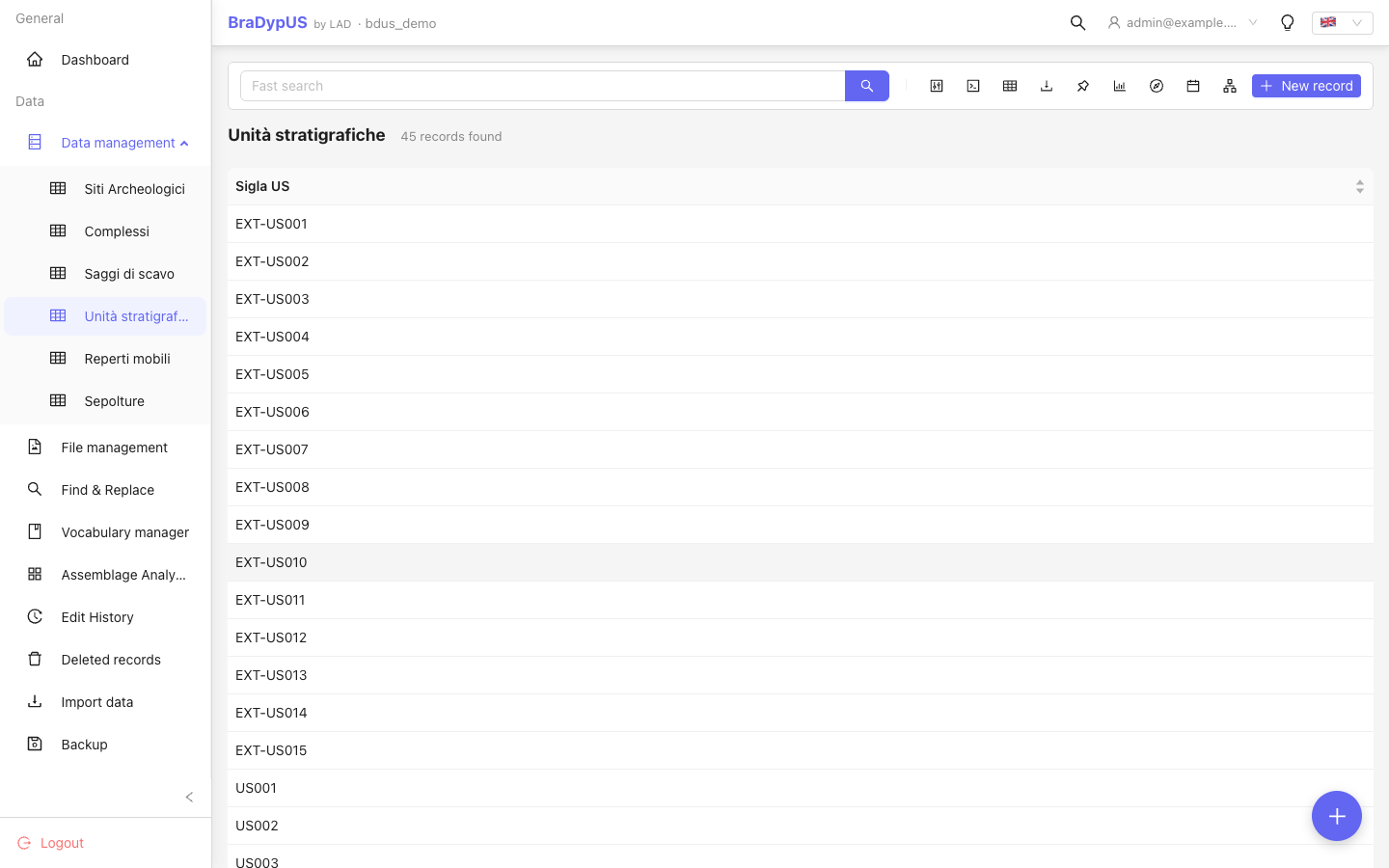
Text search
Type in the box. After a short pause (and from two characters on) the list updates by itself — there is no search button. Press Enter to search without waiting, and clear the box (the × in it) to see every record again.
The text is matched against all the table's preview fields, ignoring upper and lower case.
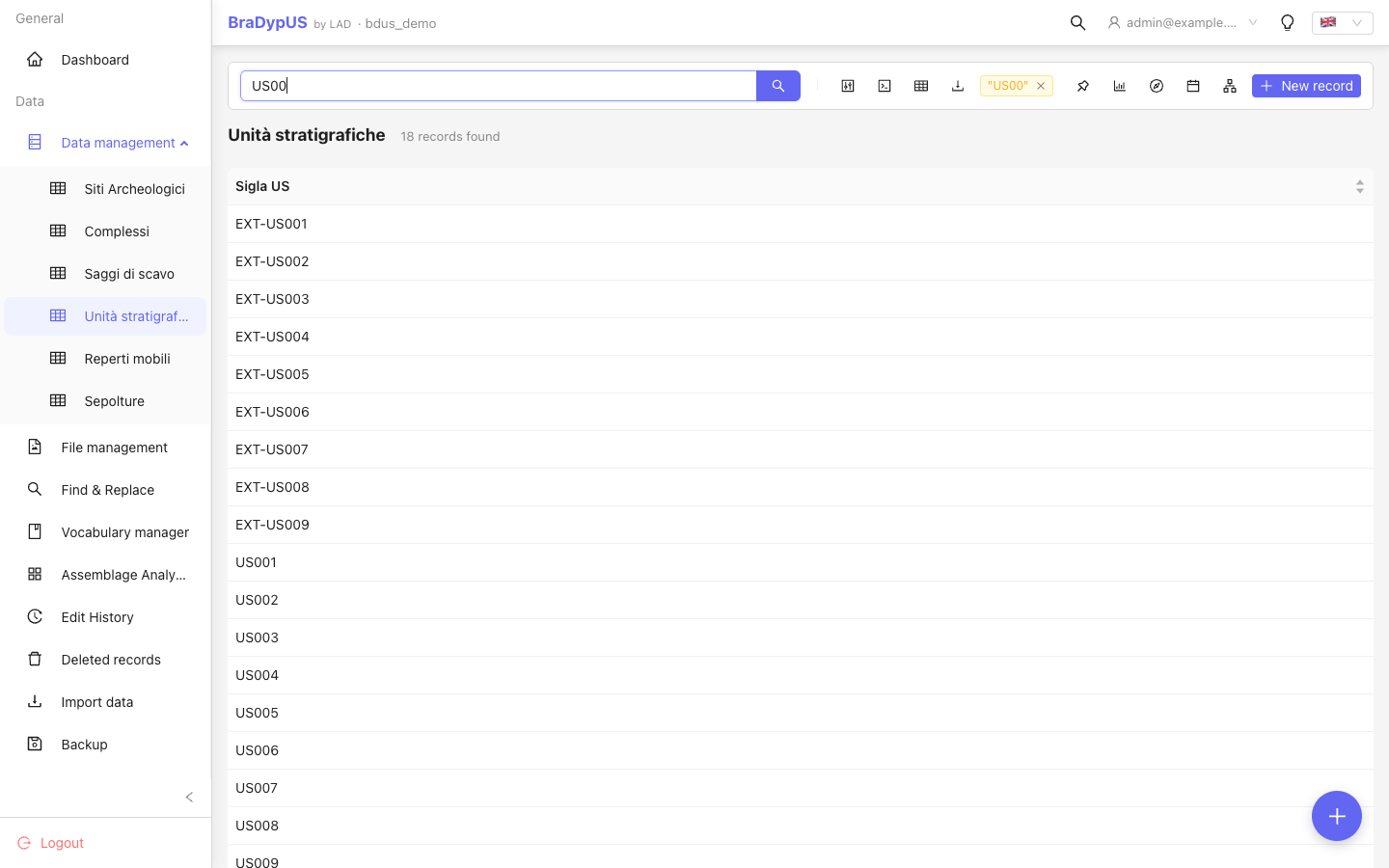
A newer search always replaces the one still running, so a slow answer can never overwrite fresher results.
Text search is meant for quick lookups. To combine several conditions, or to search fields that are not preview fields, use Filters.
Filters
The Filters button opens a panel with two tabs, Builder and SQL.
One search at a time
The text box and the filters are alternatives. Opening Filters empties the text box and disables it; it stays disabled while a filter is applied (it says so, for example 3 conditions active). To type again, remove the filter.
The Builder
The Builder is a list of conditions. Each one says:
| Part | Meaning |
|---|---|
| Field | Any field of the table, or of its plugin tables |
| Operator | How to compare (see below) |
| Value | What to compare with — the box suggests values already in the data |
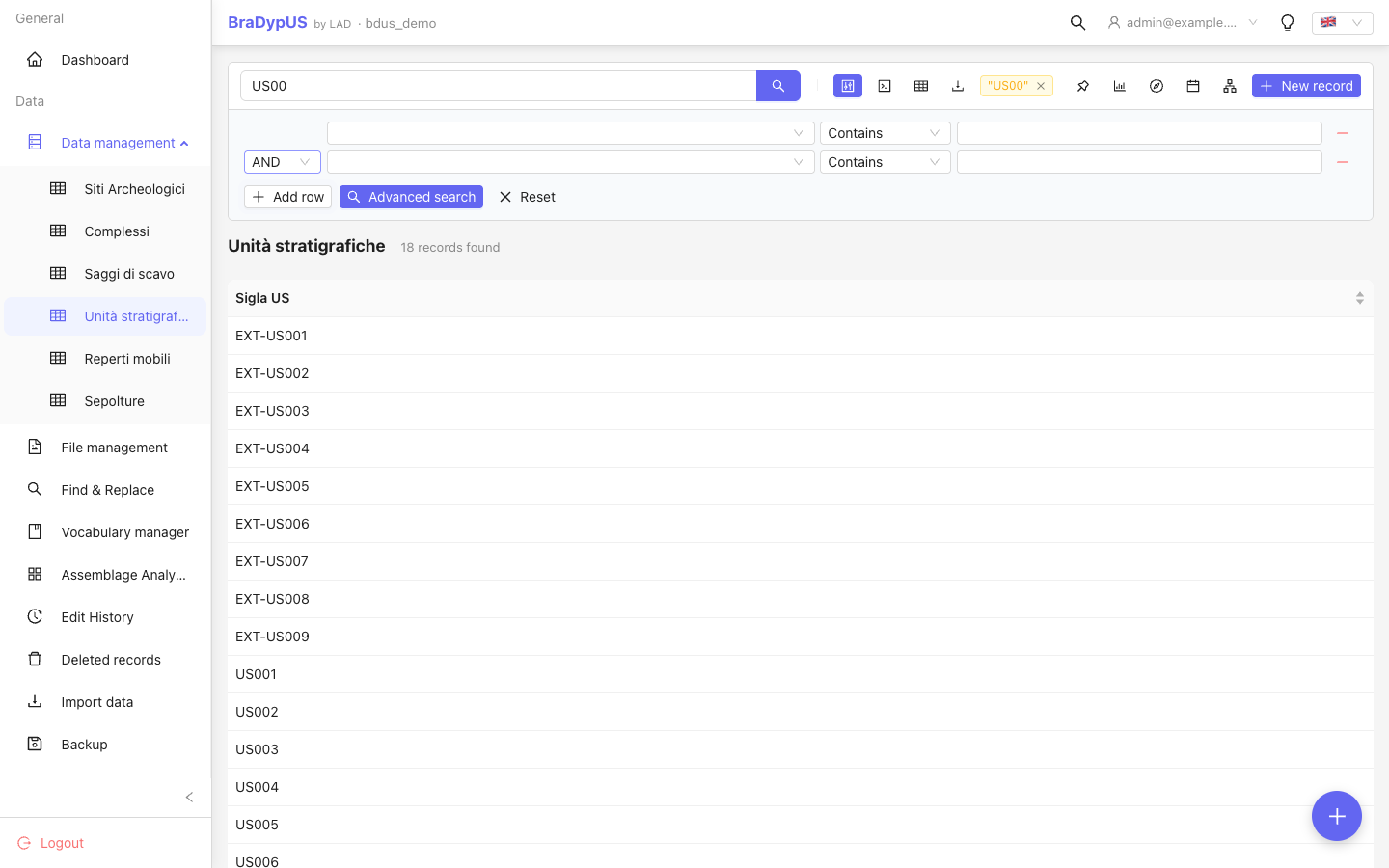
Add conditions with Add condition; remove one with the − at the end of its row. Apply runs the query and closes the panel; Close leaves the panel without changing the current results.
All, or at least one
At the top of the Builder you choose how the conditions combine:
- all — a record must satisfy every condition (
AND); - at least one — a record needs to satisfy only one (
OR).
Groups
For queries such as "in Colle Oppio, and either a fill or a layer" a single choice is not enough: the conditions need parentheses. In the Builder those are groups. A group is a box inside the query with its own all / at least one choice:
Site is exactly Colle Oppio
  AND
  ( Type is exactly Fill   OR   Type is exactly Layer )
Build it with the buttons on the rows — no dragging:
| Button | What it does |
|---|---|
| Add sub-group | Adds a group (with two empty conditions) inside the current one |
| ⇥ (group with the row above) | Puts the row together with the one above it in a new group, or moves it into the group right above. The new group uses the opposite choice (at least one inside an all, and the reverse), so grouping changes the meaning |
| ⇤ (take out of the group) | Moves the row one level up, after its group |
| Ungroup (in a group's header) | Dissolves the group: its rows move up a level |
| Trash (in a group's header) | Deletes the group with everything in it |
A group left with a single row dissolves by itself, an empty group disappears, and groups can be nested up to three levels deep.
Under the conditions, Equivalent to writes the whole query in words with its parentheses, so you can check you built what you meant:
Equivalent to: Tipo US is exactly Strato AND (Sigla US starts with US00 OR Sigla US starts with US01)Operators
| Operator | Meaning |
|---|---|
contains | The field contains the text (case-insensitive) |
is exactly | Exact match |
does not contain | The field does not contain the text |
starts with | The field starts with the text |
ends with | The field ends with the text |
does not start with | The field does not start with the text |
does not end with | The field does not end with the text |
is empty | The field is empty |
is not empty | The field has a value |
is bigger than | Greater than (numbers and dates) |
is smaller than | Less than (numbers and dates) |
SQL
The SQL tab takes the WHERE part of a query — the condition only, without the word WHERE:
sigla LIKE 'US%' AND periodo = 'Basso Medioevo'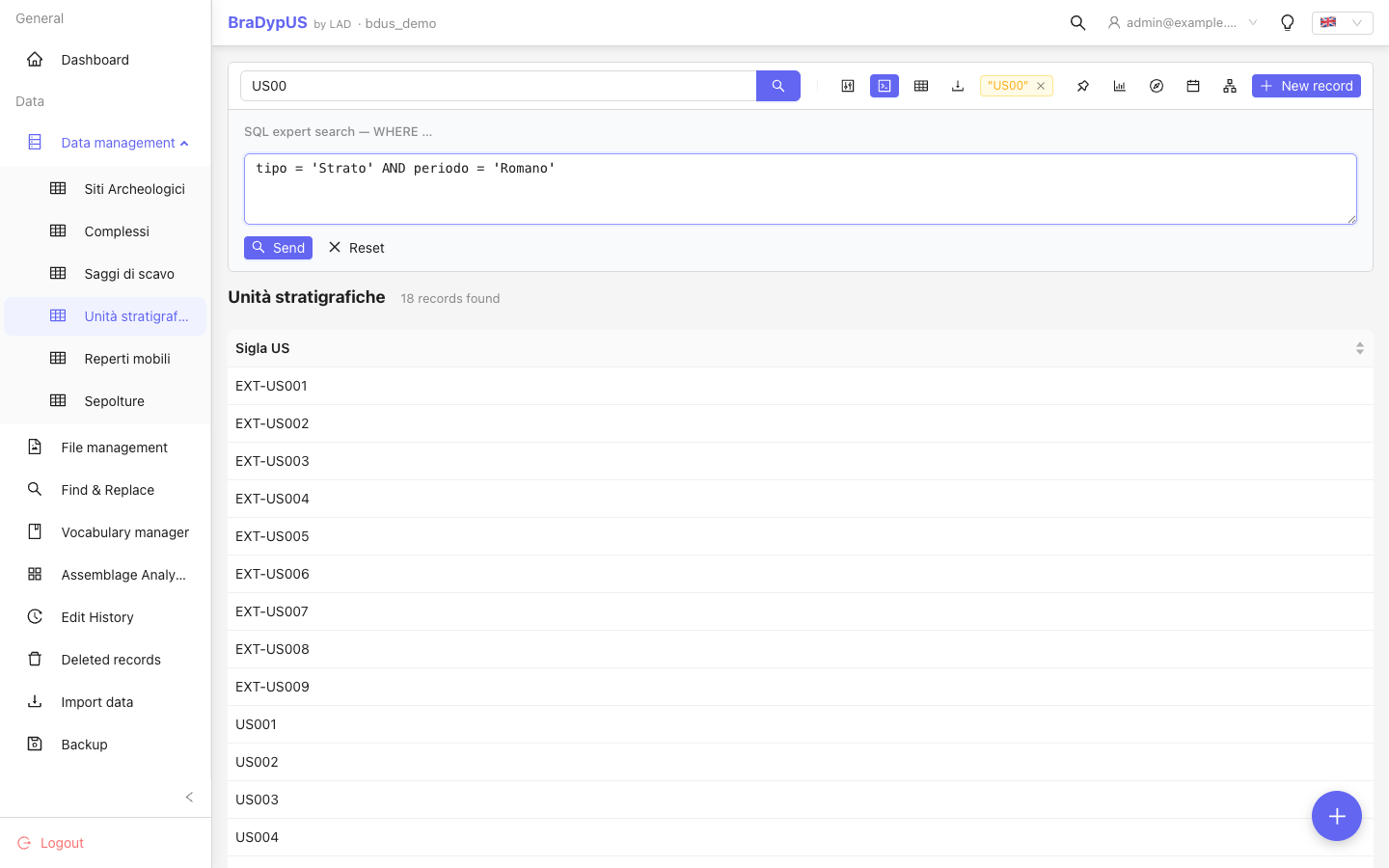
The SQL tab is available to administrators only: the text goes to the database almost as it is, so it can read any table. For everyone else the tab is not shown, and the API refuses SQL searches. Because of this:
- values are not converted to the column's real type: comparing a number with a text column may fail on PostgreSQL (write
context_id::integer > 200, or compare with a quoted string); - for safety, the words
update,delete,insert,create,drop,alter,truncate,execute,fileandindex, and the semicolon, are removed from the query wherever they appear, quoted text included. A condition such asdescrizione LIKE '%file%'therefore does not search for "file". Use the Builder for text that contains those words.
What is applied
Everything applied from Filters is shown under the query bar as chips, one for each condition — a group is a single chip with its parentheses:
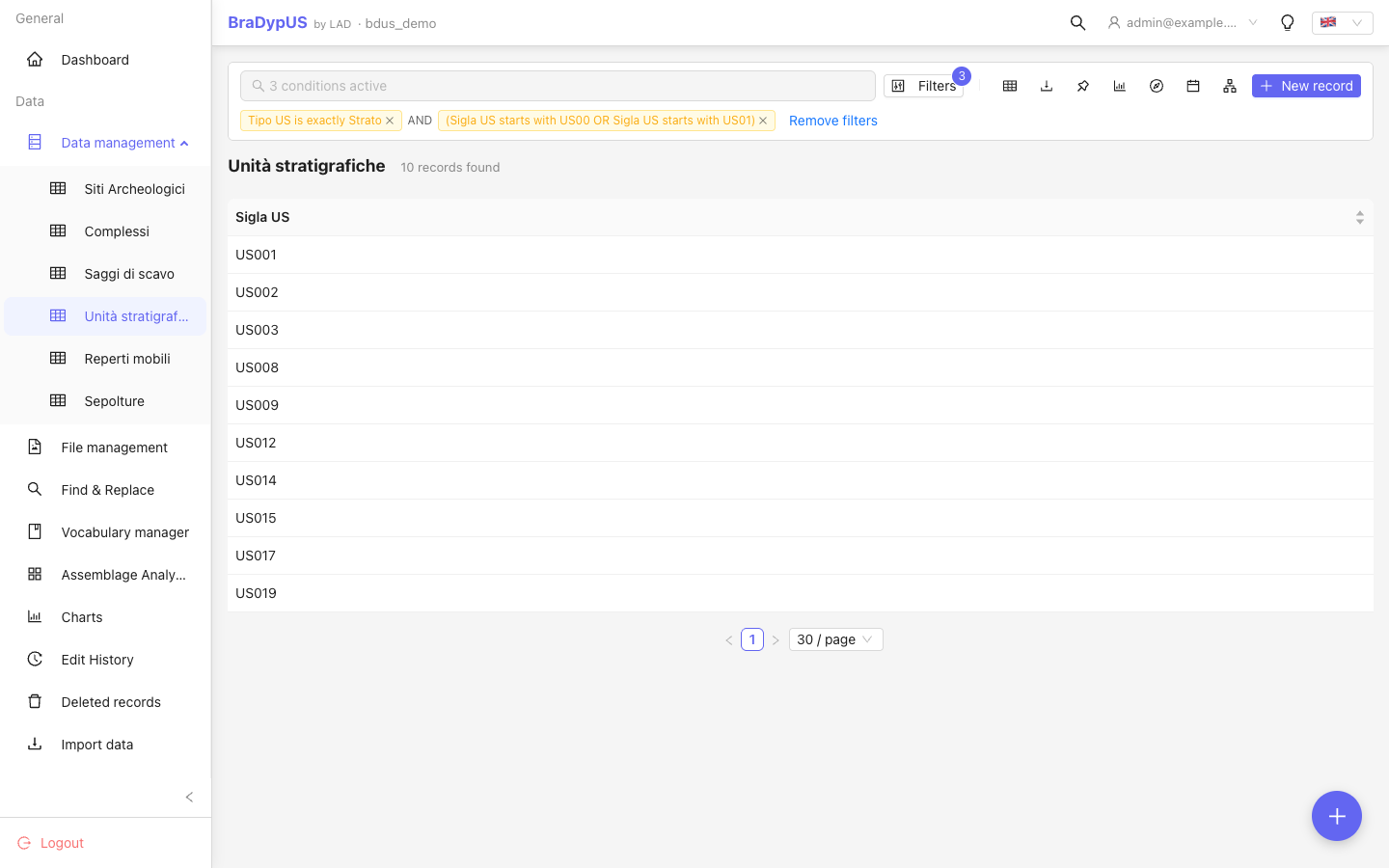
- The × on a chip removes that condition (or group) and runs what is left; removing the last one clears the search.
- Remove filters clears them all.
- The number on the Filters button counts the conditions applied.
To change a query, open Filters again: the Builder (or SQL) shows what is applied, ready to edit.
On small screens
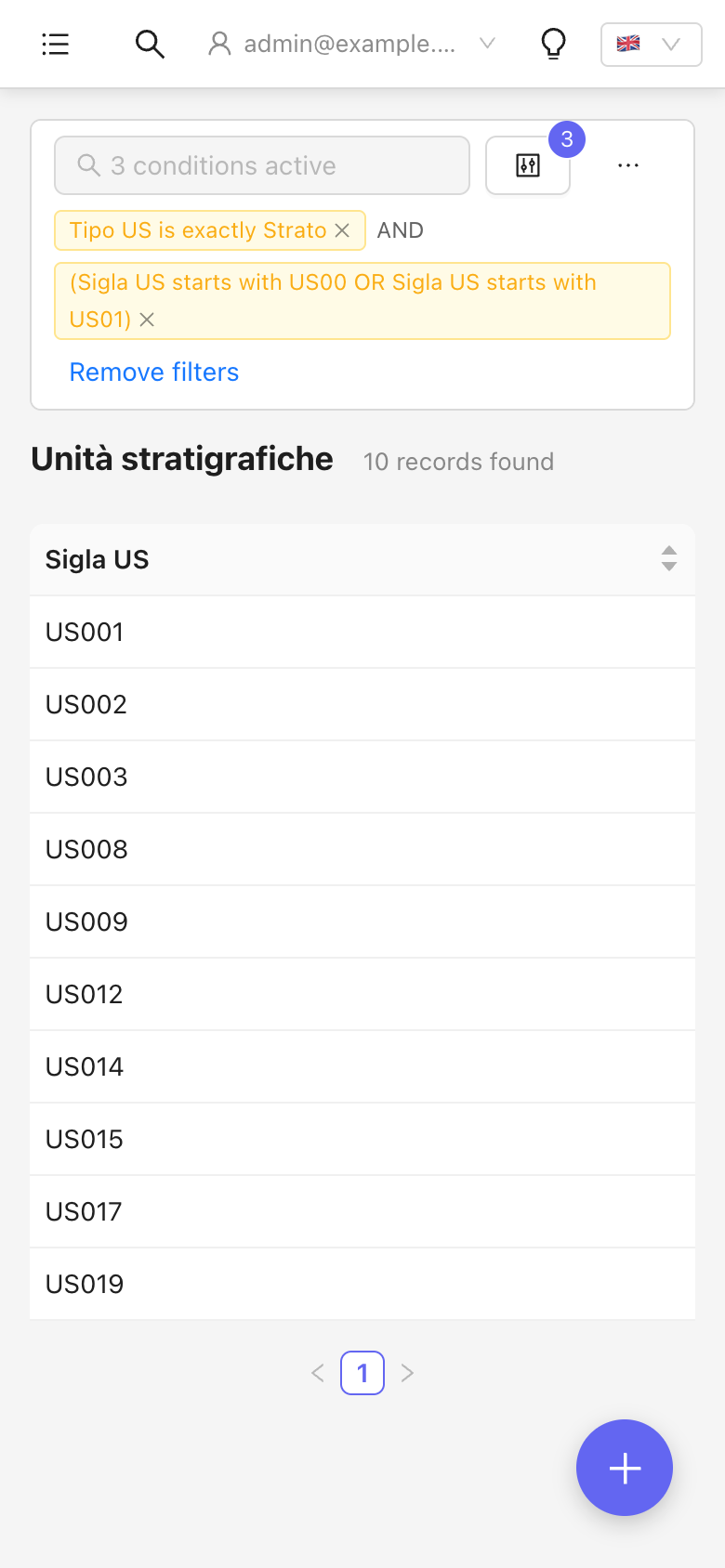
Under about 640 px of width the query bar keeps what matters: the text box, the Filters button and a ⋯ menu. Saved searches, the column picker, export, chart, map, timeline and Harris Matrix are in the menu, and New record is the round + button.
Saved searches
The pin icon (or Saved searches in the ⋯ menu) opens the saved searches. You can save the search that is applied — from the Builder or SQL — under a name, and run it again later or share it with other users. Saving stores the filter, not the text typed in the box.
Persistent filters
What you applied is kept in the page address. Copy it, bookmark it, or use the browser's Back and Forward and you get exactly the same list again. This holds for text, Builder and SQL searches, and for links created by older versions.
Other views inherit the applied search: the Harris Matrix and the map show only the records that match it, Create chart from this view starts a chart over them, and Export downloads only them (see Data export).
Searching other tables' fields
The Builder can filter by fields of plugin tables as well as of the main table; plugin fields are listed under a labelled group in the field dropdown.
Searching reference fields
Fields that point to another table (configured with id_from_tb) store the id of the referenced record, but you search them by the referenced table's display value: the autocomplete suggests those values, and the search resolves them through the referenced table automatically. This works for reference fields of the main table and of its plugin tables alike.