
Data export
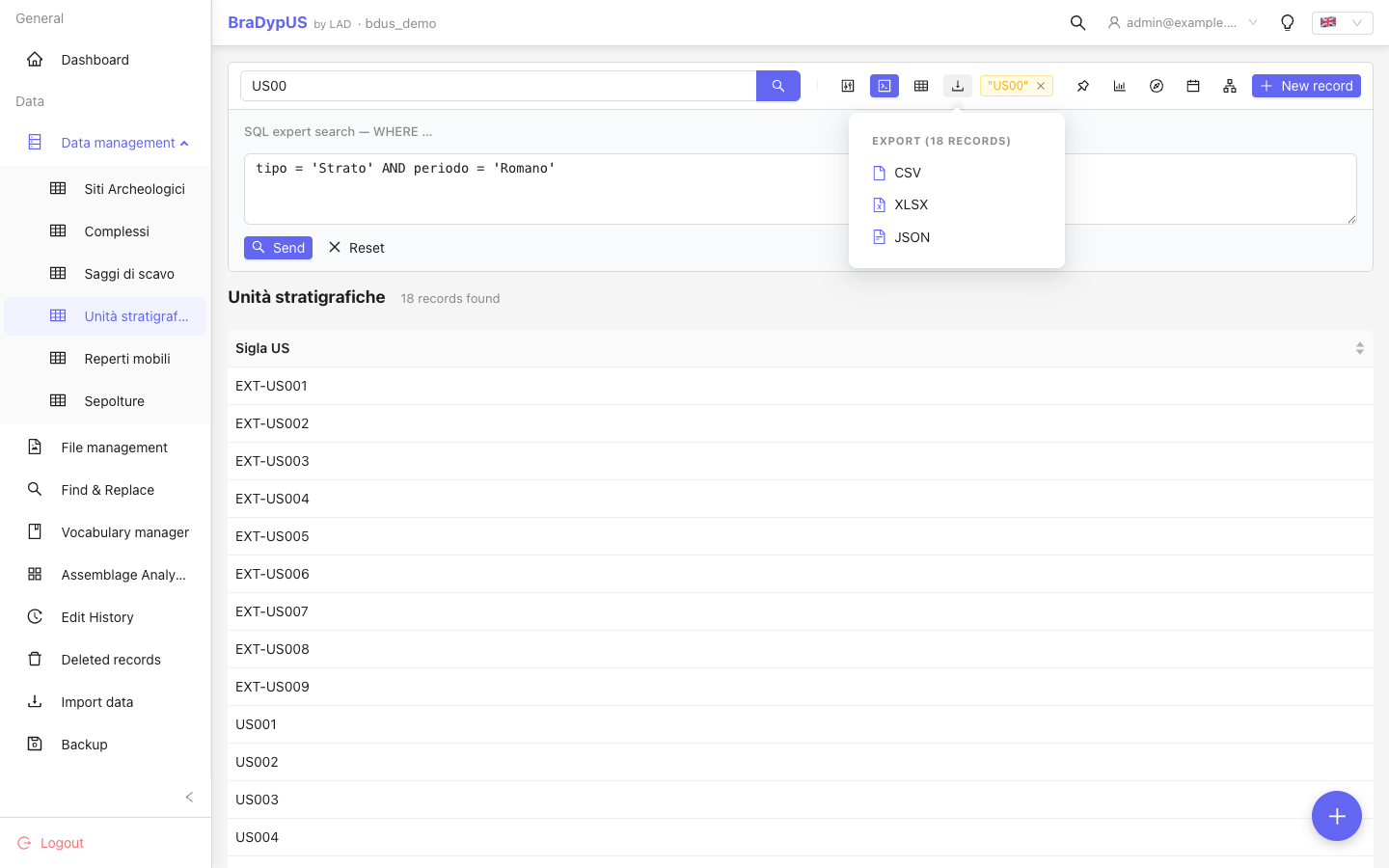
You can export records directly from the DataView toolbar. The export respects the active search filter — only matching records are exported.
How to export
- Open the record list for the desired table.
- Optionally apply a search filter to limit the export.
- Click the Export button in the toolbar.
- Choose the format: CSV, XLSX or JSON.
- The file downloads immediately — no temp file is created on the server.
What "the active filter" covers
The export takes exactly what the list is showing: a text search, a Builder search (nested groups included), an SQL search, or the filter a link from another record opened. Sorting and which columns are shown do not matter — the file always has every column of the table.
Errors are errors
If the search cannot be read — a hand-edited link with broken JSON, an unknown qt value, a qt without its q — the export does not guess: it stops with invalid_parameters and names the offending parameter, instead of quietly downloading the whole table. The same applies to the API (GET /api/records/{tb}/export).
Formats
| Format | Notes |
|---|---|
| CSV | Comma-separated values, UTF-8 encoded. Suitable for Excel, Google Sheets, R, Python. |
| XLSX | Native Excel file. Column headers in row 1. |
| JSON | Array of objects, one per record. Field names as keys. |
What is exported
The export includes all columns of the main table (not plugin sub-tables). The column order matches the field order defined in Config.
Plugin table data (e.g. finds attached to a context) is not included in the main export. Export the plugin table separately by selecting it as the active table.
Large datasets
Exports are streamed directly to the browser — there is no server-side temp file and no memory ceiling. Exports of hundreds of thousands of records are supported.