
Login & authentication
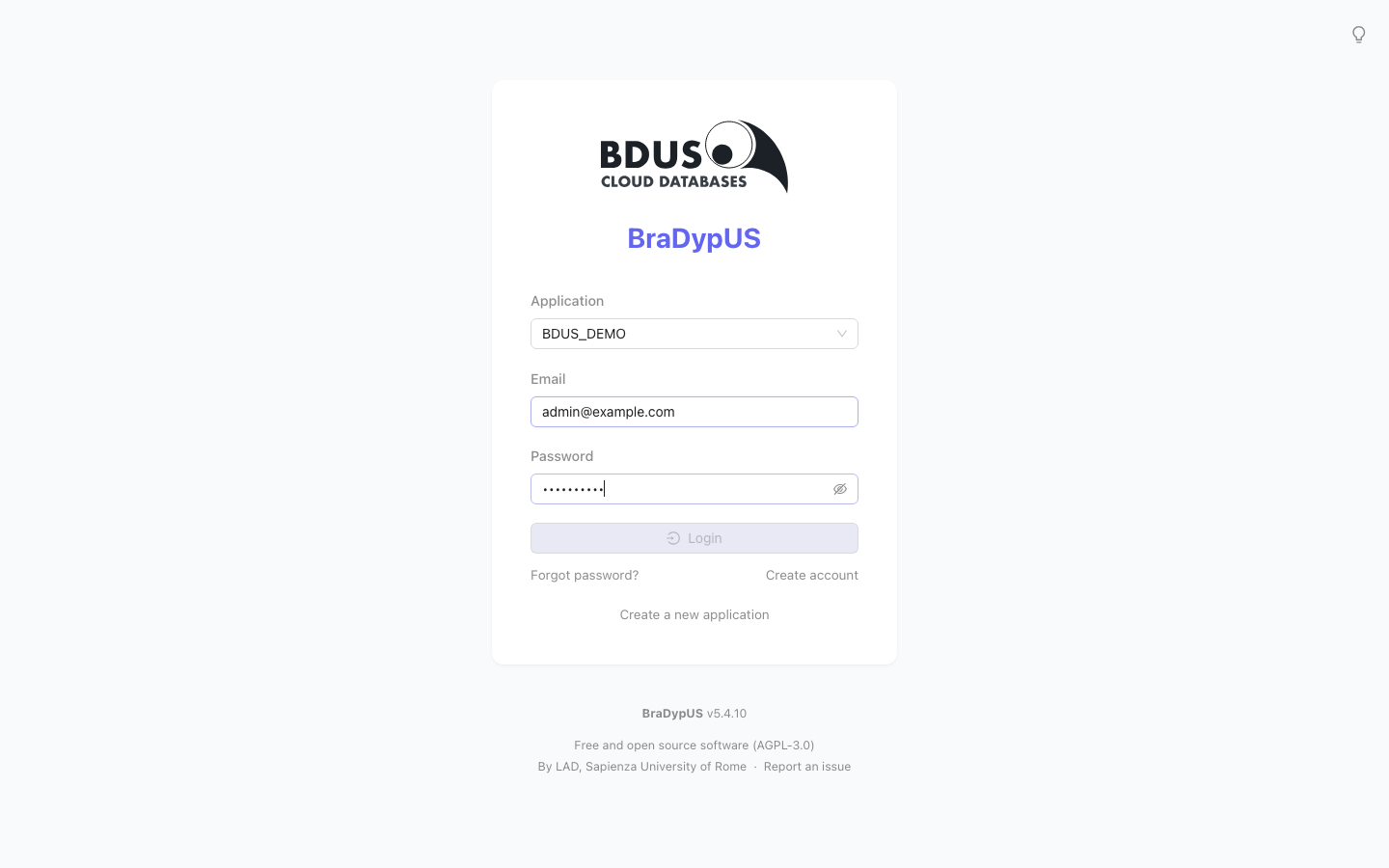
The login screen (/login) is the entry point to every BraDypUS application hosted on an instance. Pick an application from the Application dropdown, then sign in with email + password, or with a configured SSO provider.
Single sign-on
If an administrator has configured Google or ORCID for the selected application, a matching button appears below the login form. With Google, signing in the first time links that identity to your existing BraDypUS account automatically, by matching your email address.
ORCID doesn't share an email address, so there's nothing to auto-match on — and the same screen also covers a genuinely new user on either provider. If no account is found, you're offered a choice instead of a dead end:
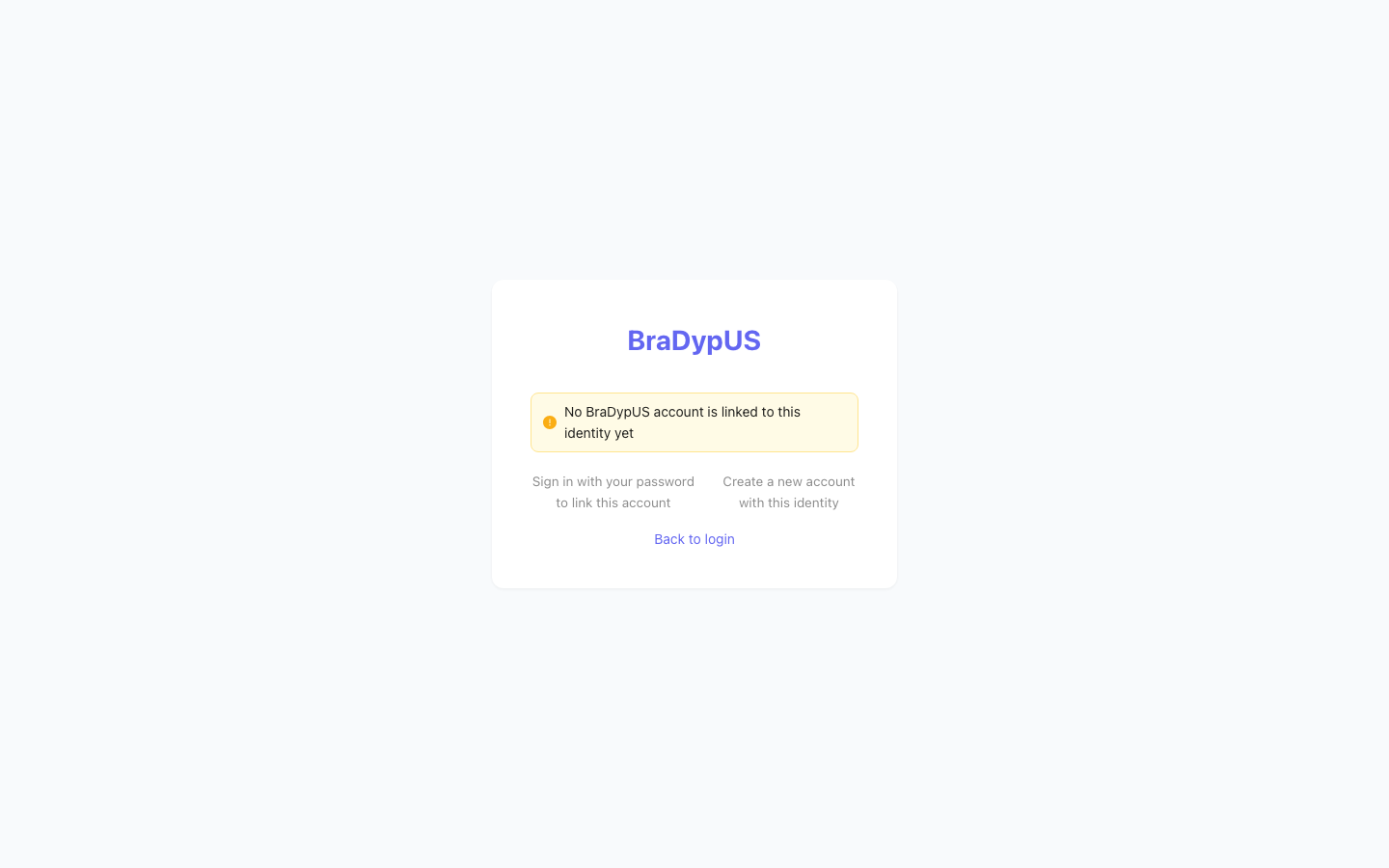
- Sign in with your password to link this account — if you already have a BraDypUS account, entering its password once links this identity to it. All future sign-ins can then use either method.
- Create a new account with this identity — only shown when self-registration is enabled for this application (see Self-registration below); creates a new account from just an email, at the same Pending privilege level, awaiting admin approval.
Forgot password
The Forgot password? link only appears when the instance has email sending configured (see Deploy → environment variables) — on an installation that hasn't set this up, the link is hidden rather than leading to a broken form.
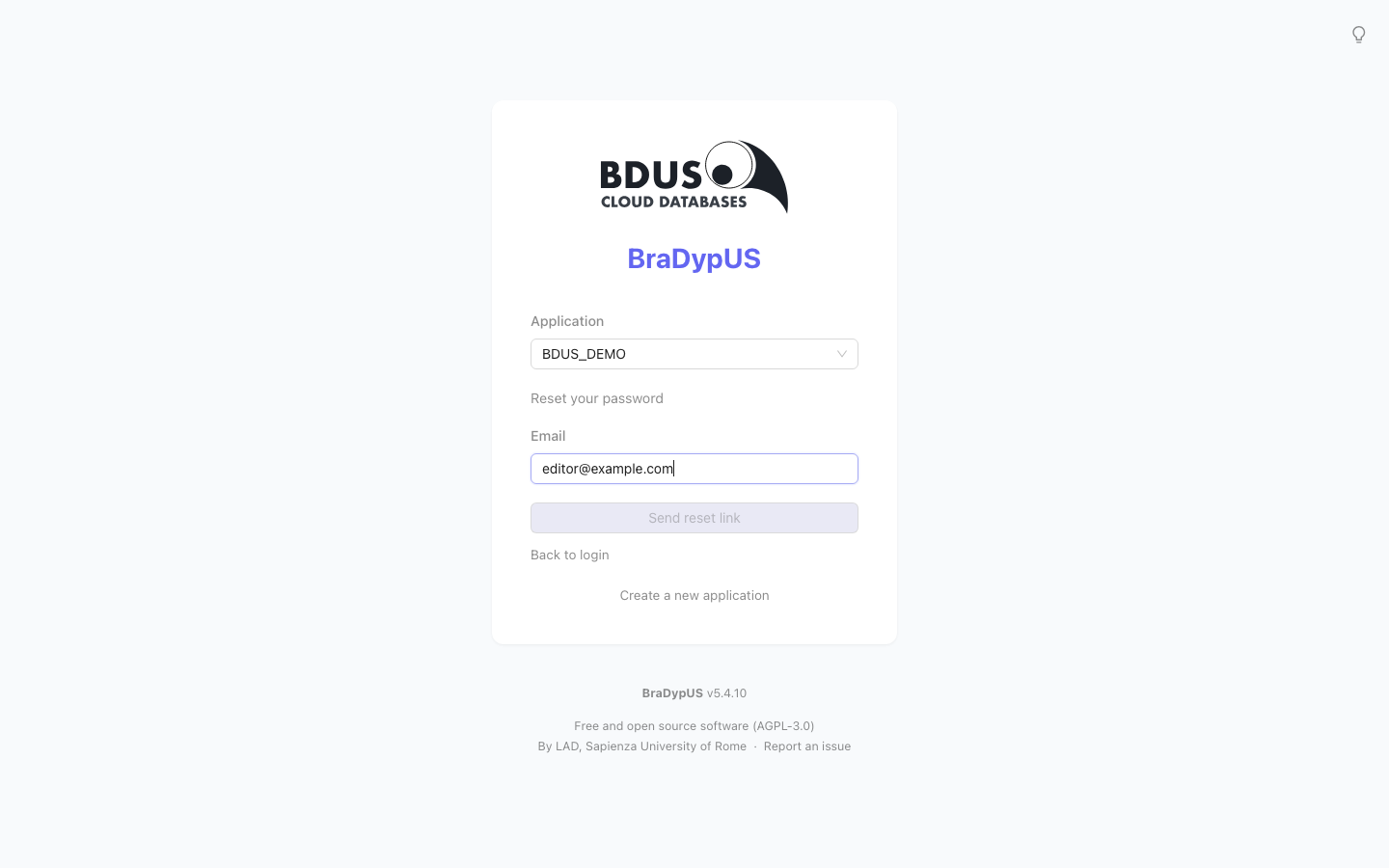
- Click Forgot password?, enter your email, and click Send reset link.
- You always see the same confirmation message, whether or not that email matches an account — this is deliberate, so the form can't be used to check which addresses are registered.
- If it matches, an email arrives with a reset link, valid for one hour and usable only once.
- Opening the link takes you to a page to choose a new password:
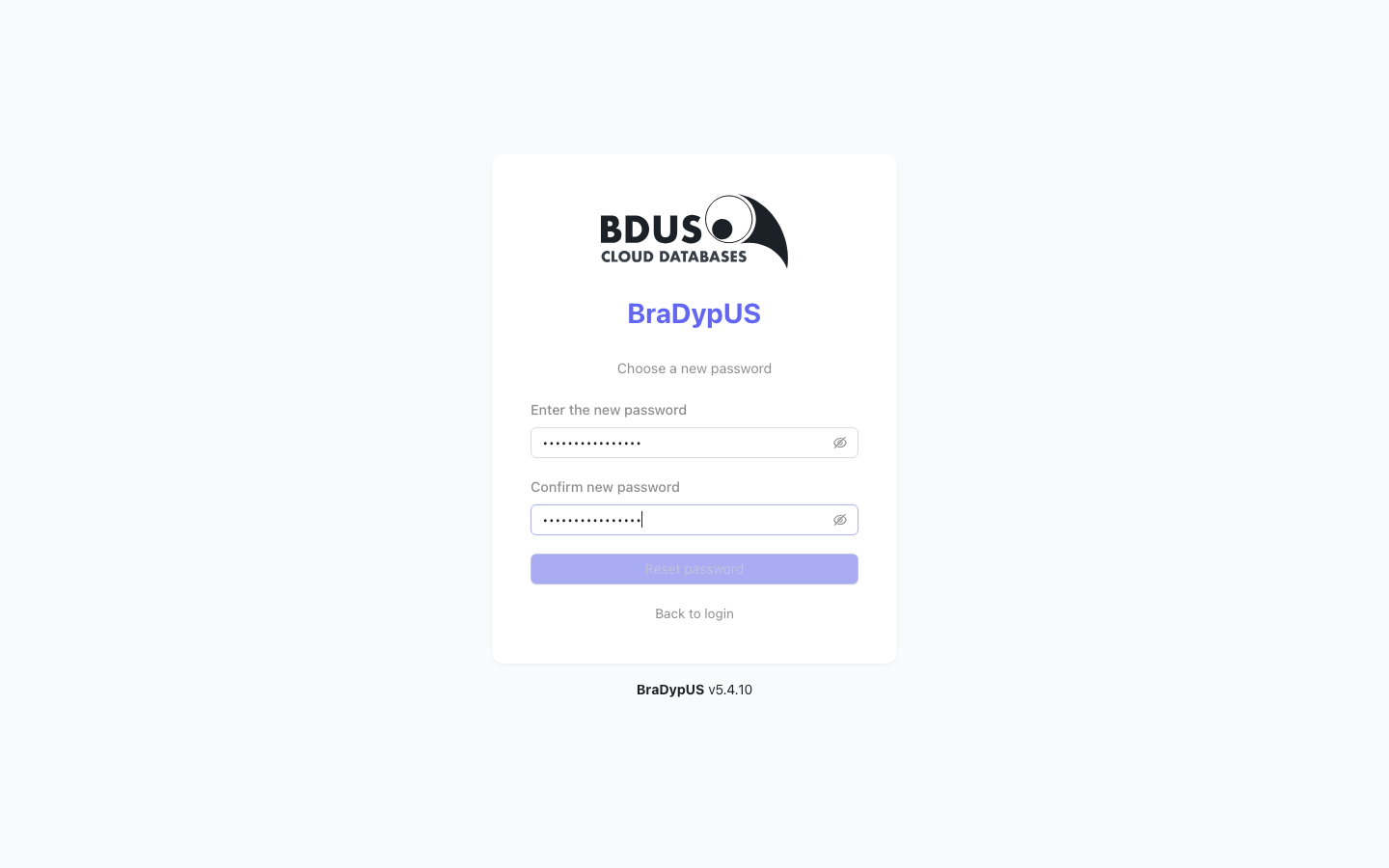
Successfully resetting your password also lifts any temporary lock from too many failed login attempts (see below) — proving you own the account this way is just as good as a correct password.
Self-registration
The Create account link, like Forgot password?, only appears when email sending is configured — and additionally only when an administrator has turned it on for that specific application (Config → App settings → Allow self-registration, off by default; see App settings → Access).
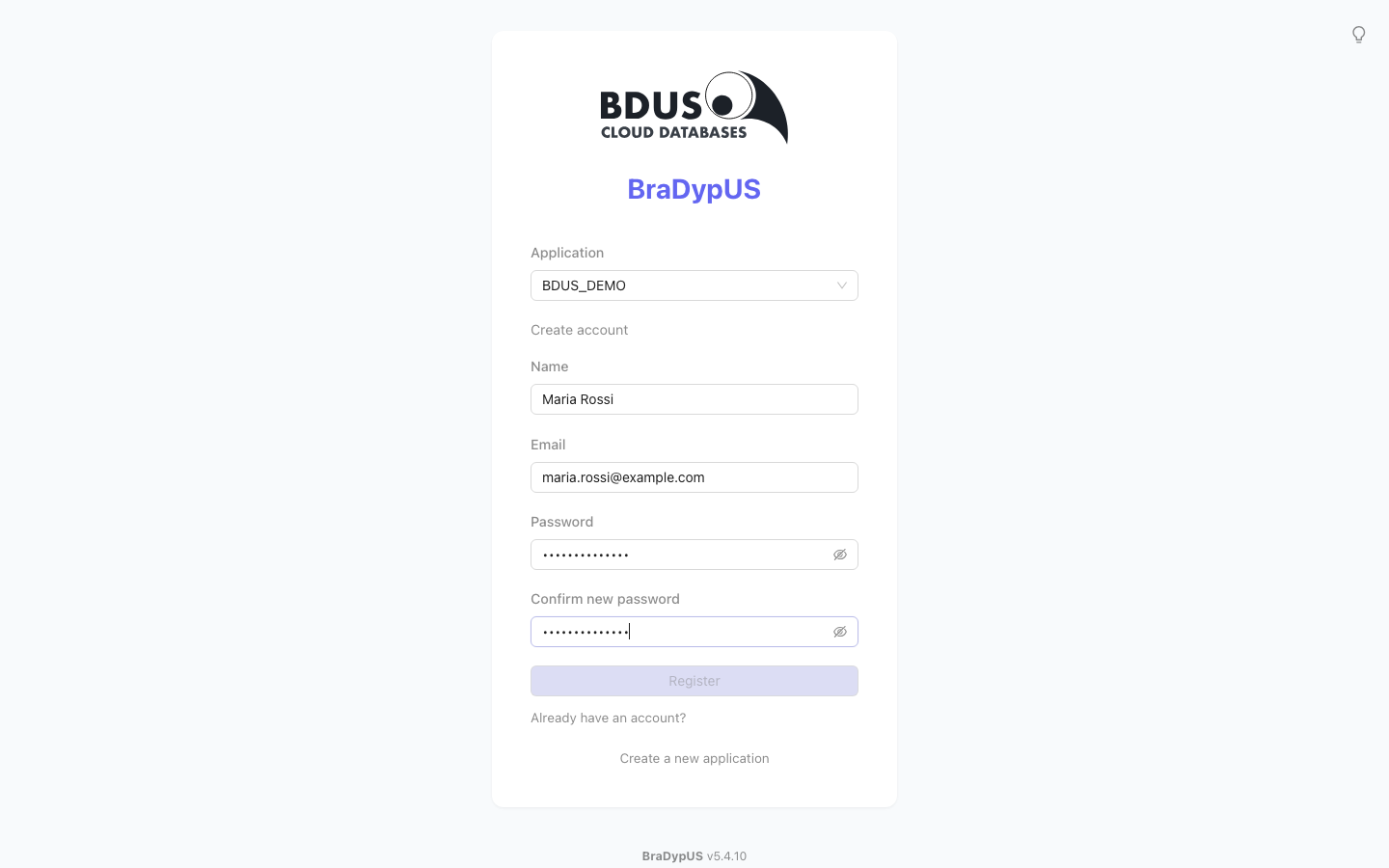
Filling in the form creates an account immediately, but with the Pending privilege level (see Users & privileges) — it has no access to anything until an administrator reviews it and raises the privilege. Both you and every admin get a confirmation email.
Too many failed attempts
After 5 consecutive failed login attempts, an account is locked for 15 minutes — the login form shows a message instead of attempting the password check. This is per-account, not per-IP, and resets on the next successful login (or password reset). It's a second line of defense in addition to any rate-limiting configured on your reverse proxy.