
Print templates
Print templates define custom display layouts for individual records. They are useful for generating printable views or structured summaries of complex records.
Open Templates from the sidebar (super-admin required).
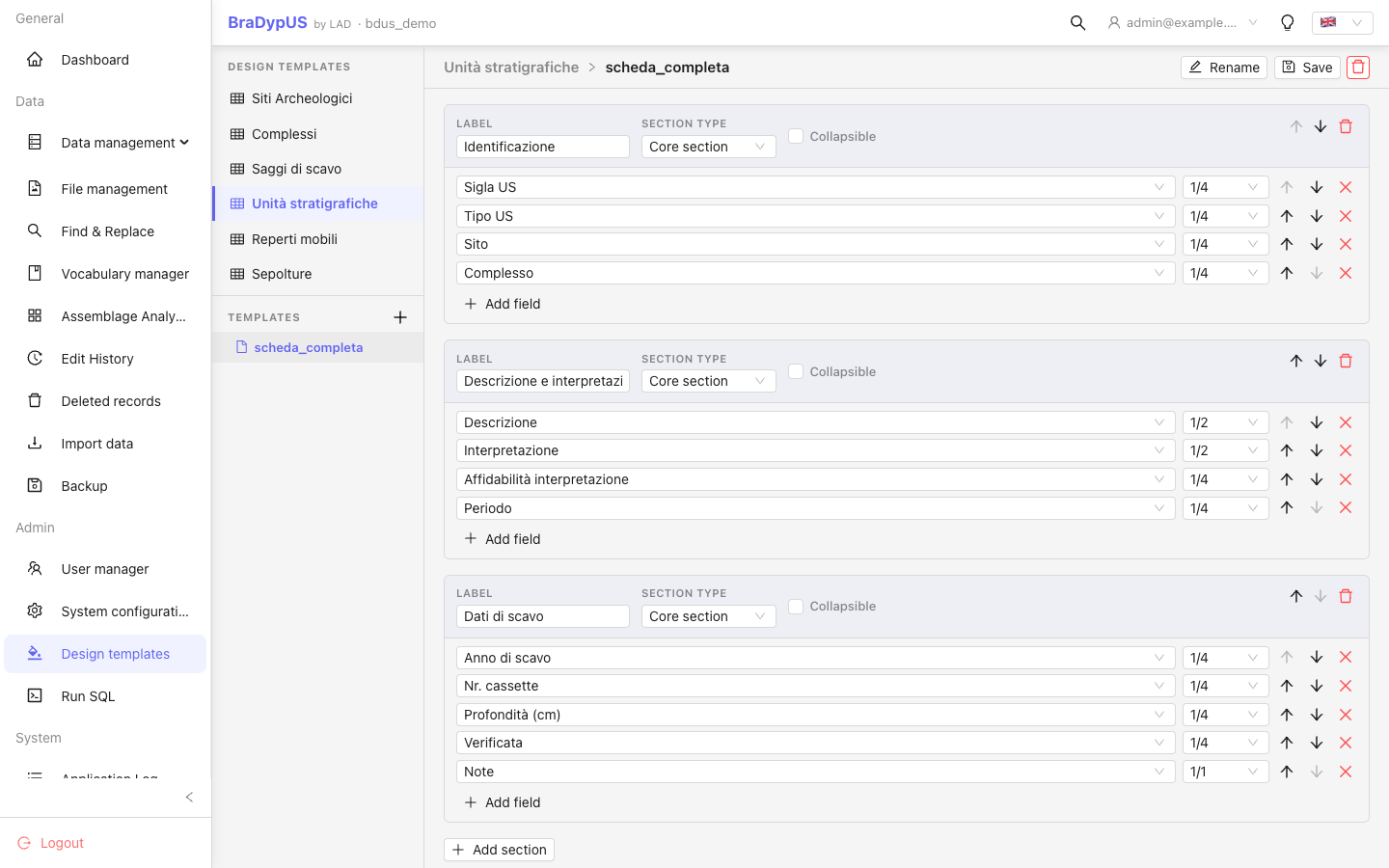
Structure
A template is a JSON object with a sections array. Each section contains a content list of fields with their display width:
{
  "sections": [
    {
      "label": "Basic information",
      "collapsible": false,
      "content": [
        { "field": "sigla",       "width": "1/4" },
        { "field": "periodo",     "width": "3/4" },
        { "field": "descrizione", "width": "1/1" }
      ]
    }
  ]
}
Section properties
| Property | Type | Description |
|---|---|---|
label | string | Section heading |
type | string | "accordion" to render sub-panels instead of fields (see below) |
plugin | string | Set to a plugin table name to show rows from that sub-table |
collapsible | boolean | true to allow the section to be collapsed (not used with accordion) |
collapsed | boolean | true to render the section collapsed by default |
content | array | For core/plugin sections: array of { field, width } objects. For accordion: array of panel objects |
Field width
Width is a fraction string. Valid values: "1/1", "1/2", "1/3", "2/3", "1/4", "3/4". Fields in a section should ideally sum to one full row.
Accordion sections
A section with "type": "accordion" renders its content as a series of collapsible sub-panels. Each panel has its own label and field list:
{
  "label": "Scheda tecnica",
  "type": "accordion",
  "content": [
    {
      "label": "Localizzazione",
      "open": true,
      "fields": [
        { "field": "sito",     "width": "1/2" },
        { "field": "ambiente", "width": "1/2" }
      ]
    },
    {
      "label": "Definizione",
      "open": false,
      "fields": [
        { "field": "categoria", "width": "1/3" },
        { "field": "tipo",      "width": "2/3" }
      ]
    }
  ]
}| Panel property | Type | Description |
|---|---|---|
label | string | Panel heading |
open | boolean | true (default) to render the panel open; false to render it collapsed |
fields | array | Array of { field, width } objects, same format as section content |
Accordion sections are ideal for tables with many fields: group logically related fields into panels so the form stays manageable without hiding data.
Plugin fields in core sections
A core section can also include plugin tables, in the position where you want them among the core fields. A plugin item carries the plugin table name in plugin:
{
  "label": "Quires",
  "content": [
    { "field": "quirenotes", "width": "1/1" },
    { "plugin": "m_quires", "field": "*", "width": "1/1" }
  ]
}| Property | Description |
|---|---|
plugin | Plugin table name (must be a plugin of the template's table) |
field | A plugin field name, or "*" for all plugin fields |
width | Width of the field inside the plugin table row (ignored for "*") |
Plugin fields are multiple-entry: consecutive items of the same plugin are rendered together as one multi-row table, full width, at that position. With "*" all columns are shown; otherwise only the listed fields, in the listed order and widths. Two groups of the same plugin separated by core fields show the same data twice.
In the template editor the field picker groups core fields and plugin fields (Plugin › field, and Plugin › * (all fields)); plugin sections and items are marked with an orange badge and border to tell them apart from core fields. Plugin items are not available inside accordion panels.
Plugin sections
With "plugin": "table_name" the section shows the rows of that sub-table. content is required but may be an empty array: in that case all plugin fields are shown. List fields in content to choose their order and width.
JSON editor
The template editor has a Visual / JSON code switch. In JSON mode you can paste or edit the whole template (sections, accordions and plugin sections). Switching back to Visual requires valid JSON; field names and widths are validated by the server on save; if validation fails, the errors are listed above the editor and nothing is saved.
Creating a template
- Select the target table from the Table dropdown.
- Click New template and give it a name.
- Edit the JSON in the editor panel.
- Click Save.
Applying a template to a record
In RecordView, the Templates dropdown in the toolbar lets the user switch between available templates and the default view.
Renaming and deleting templates
Use the Rename and Delete buttons in the template list.