
App settings
The App settings panel controls the global properties of your application. Open it from Config → App settings (the first panel in the sidebar).
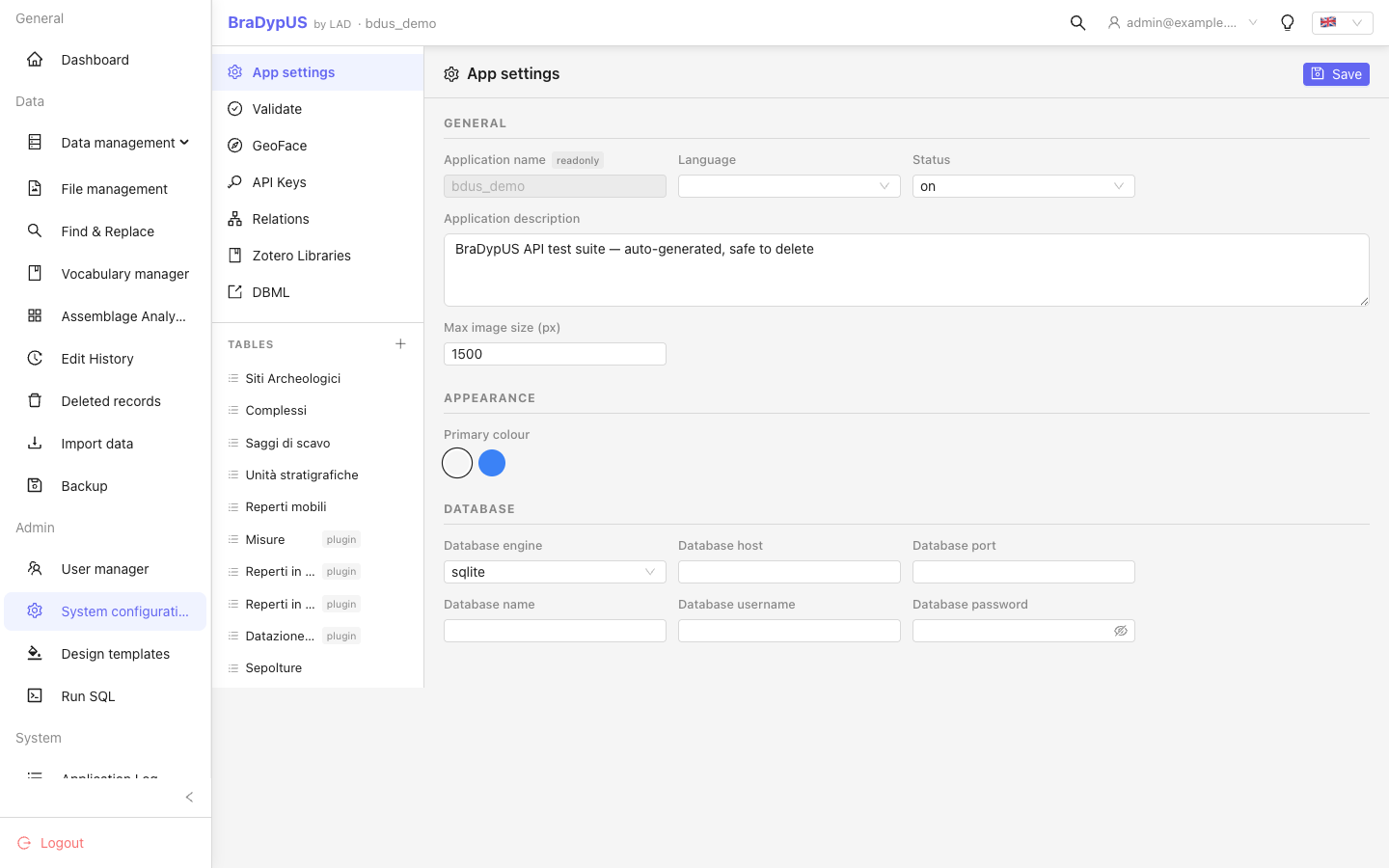
Fields
| Field | Description |
|---|---|
| Application name | Short identifier used internally (read-only after creation) |
| Application label | Human-readable display name shown in the navigation header |
| Definition | Brief description of the application's purpose |
| Language | Default UI language (en or it) |
| Status | on = fully active; off = read-only for non-admins; freeze = no writes at all |
| DB engine | sqlite, mysql, or pgsql (set at creation, not changeable here) |
| Max image size | If set, uploaded images are automatically downscaled to fit within this pixel bound |
Status values
on— normal operation; all users with the right privilege can read and write.off— only admins and super-admins can write; other users see data in read-only mode.freeze— the entire application is read-only for everyone, including admins.
Use freeze before performing a backup or migration.
Images
Beyond Max image size (in the Fields table above), an Images section lets you optionally standardize the format of every uploaded image:
| Field | Description |
|---|---|
| Convert format on upload | Off by default. When on, every uploaded raster image is re-encoded to the target format below, at the given quality and DPI. |
| Target format | WebP (recommended — better compression, keeps transparency) or JPG (for maximum compatibility; transparent areas are flattened onto a white background). |
| Quality | 1–100, default 85. Only used when conversion is on. |
| DPI | Default 72 (the standard for on-screen display). Only used when conversion is on. |
Animated GIFs are never converted — collapsing them to a single-frame format would destroy the animation — but they are still downscaled if they exceed Max image size.
EXIF/GPS metadata is not preserved
Whenever an image is resized or converted, the metadata embedded by cameras and phones (including GPS coordinates) is lost — this already applies to the plain Max image size downscale, not only to format conversion. If you need to keep this data (e.g. for provenance), disable both settings for that upload, or check the location before uploading.
Both settings apply only to new uploads and file replacements, never retroactively to files already stored.
Access
| Field | Description |
|---|---|
| Allow self-registration | When on, anyone with the login link can create their own account via Create account on the login screen (see Login & authentication → Self-registration). Off by default. |
Self-registered accounts start at the Pending privilege level — no access to anything until an administrator reviews them in Users & privileges and raises the privilege.
This toggle is disabled, with an explanatory note, when the instance hasn't configured email sending at all (RESEND_API_KEY — see Deploy → environment variables): turning it on wouldn't do anything without a way to actually notify the new user and the admins. See Email (Resend) for how to set that up.
OAuth2 SSO
Lets a super-admin configure "Sign in with…" buttons on the login page for Google and/or ORCID, without touching config.json by hand. For each provider you get:
- Client ID / Client secret — from that provider's own developer console.
- Redirect URI (read-only) — the exact callback URL to paste into the provider's console for this app, computed from the current host.
A provider's button only appears to users once both fields are filled in — an Enabled badge confirms it's active. See OAuth2 / SSO for the full Google/ORCID setup walkthrough and how the login flow itself works.
Appearance
The Appearance section lets an administrator pick the application's primary colour. The change takes effect immediately (live preview) and is applied to every user the next time they load the app.
Eight palette options are available — all tested in both light and dark mode:
| Swatch | Name |
|---|---|
| 🟣 | Indigo (default) |
| 🔵 | Blue |
| 🟣 | Violet |
| 🟢 | Emerald |
| 🩵 | Teal |
| 🟡 | Amber |
| 🌹 | Rose |
| ⬜ | Slate |
A ninth, round colour-picker control opens the browser/OS colour picker for any custom colour, and the hex value underneath it can also be typed or pasted directly (#rrggbb) — useful for matching an institution's own brand colour exactly.
The selection is stored in bdus_cfg_app.color (added by migration M025) as either one of the eight names above or a raw #rrggbb string, and is read at login time from GET /api/info/app.
Saving
Click Save to apply changes. A toast notification confirms success or shows the error detail if validation fails.